Run Every Meeting Inside Your CRM

Everything Your Team Needs to Meet, Connect, and Follow Up - Faster
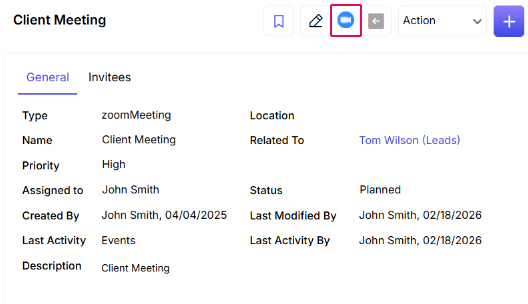
Open any lead or contact record, click the Zoom icon, and instantly launch a video call or schedule a future meeting - no copy-pasting links, no switching platforms, no friction
Schedule meetings directly from any lead, contact, or deal record, launch Zoom calls with a single click, and share meeting links without breaking your workflow - all from inside ConvergeHub.
Perfect for sales, support, and customer success teams who need to move fast.
Every Zoom meeting, call, and webinar is automatically logged and synced back to ConvergeHub in real time - no manual entry, no missed details, no gaps in your customer data.
Meeting dates, durations, participants, and notes are captured instantly and linked directly to the contact record, keeping full meeting history visible across your team with accurate activity timelines for smarter follow-ups.
No more chasing down meeting notes or second-guessing who spoke to whom. Your CRM data stays complete and your team stays aligned - always.
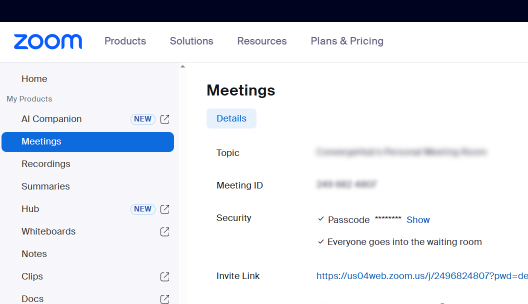
Zoom's video conferencing power, combined with ConvergeHub's CRM capabilities, gives your team a single workspace to manage customer conversations, internal check-ins, and everything in between.
Coordinate across sales, support, and success teams from a shared CRM view, see every touchpoint - calls, emails, meetings - in one unified timeline, and eliminate duplicate data and miscommunication between departments.
When your meetings live inside your CRM, collaboration becomes the default - not an extra step.
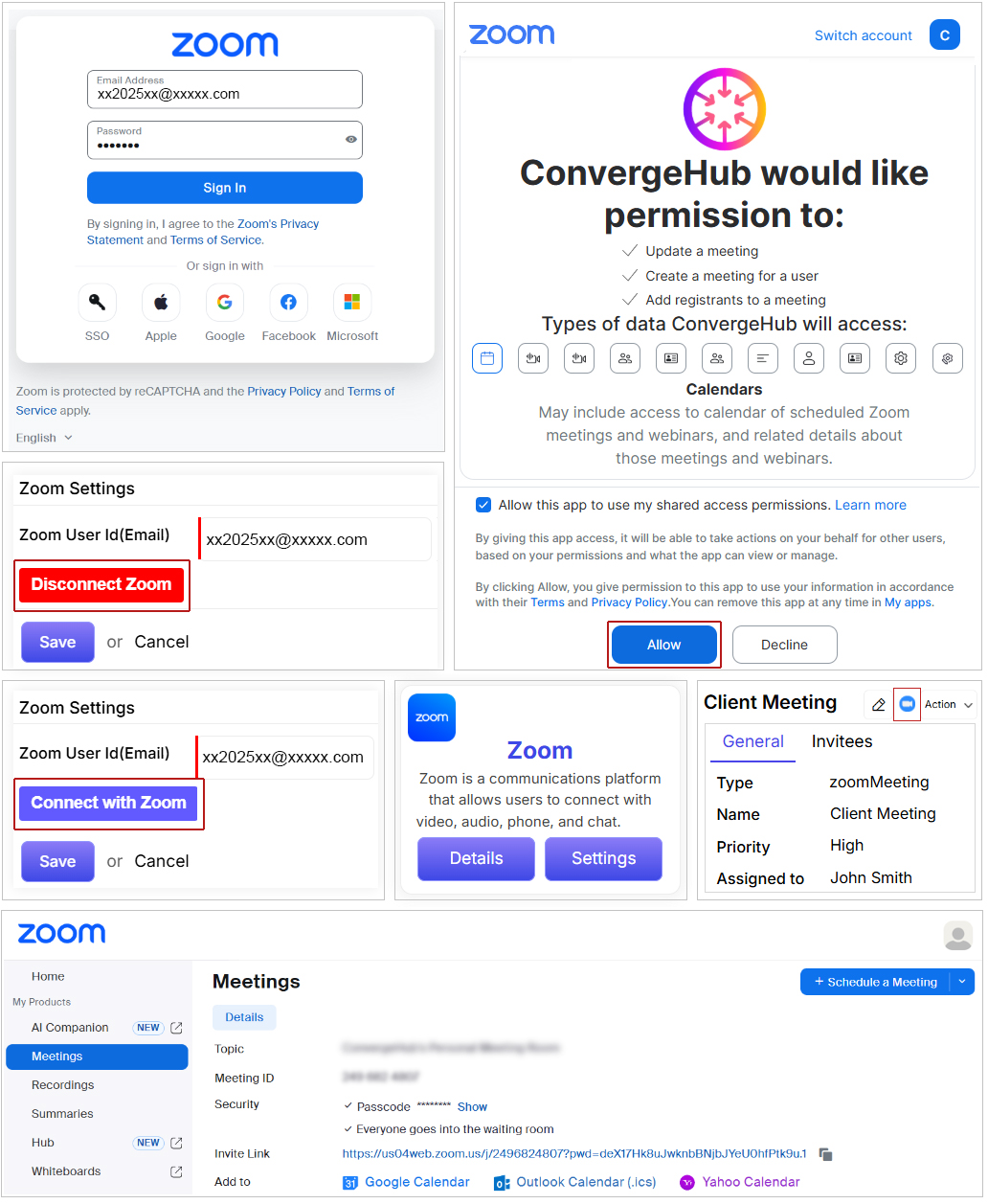
From your ConvergeHub dashboard, click Settings in the left-hand menu. Then go to App Setup → App Store. Search for the Zoom plugin and click the Settings button inside the Zoom listing. This opens the Zoom Settings panel where you'll complete the connection.
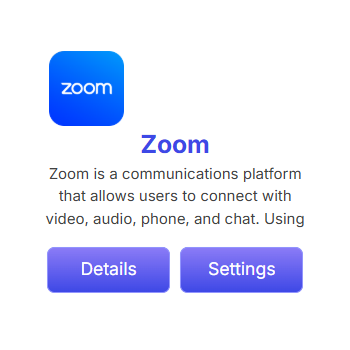
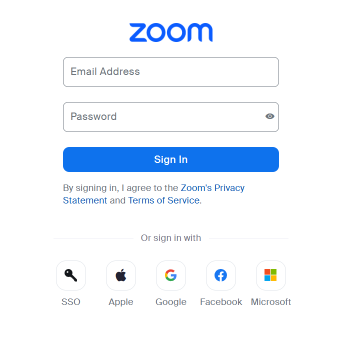
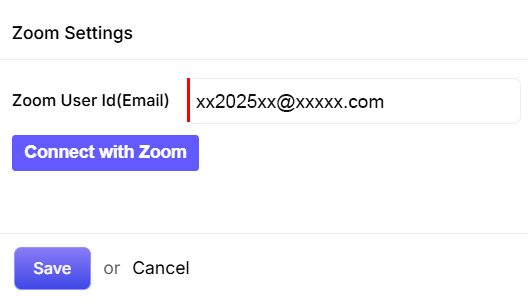
Inside the Zoom Settings panel, enter the email address associated with your Zoom account (your Zoom User ID). Then click the Connect with Zoom button. You'll be redirected to the Zoom login page - enter your credentials to continue.
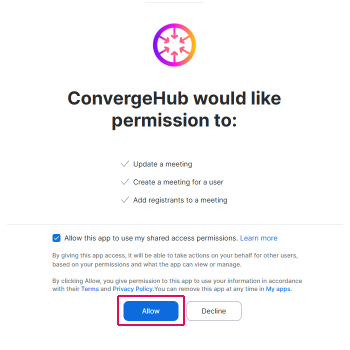
After signing into Zoom, you'll be prompted to grant ConvergeHub permission to connect. Check the authorization checkbox and click Allow. Once confirmed, hit Save to lock in a stable, uninterrupted connection between your accounts.
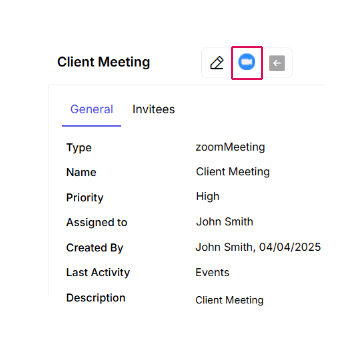
Head back to your ConvergeHub dashboard. Click on Activities and create an Event - this finalizes the setup and activates the Zoom integration. From here, you can open any lead or contact record, click the Zoom icon, and start scheduling or launching meetings instantly.
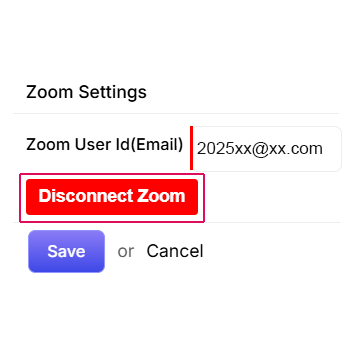
Need to disconnect your Zoom account? No problem. Navigate to Settings → App Setup → App Store. Find the Zoom plugin, click its Settings button, and select Disconnect Zoom. Your integration will be deactivated immediately - with all previously logged meeting data preserved in your CRM.